Filter with AI
The Filter with AI feature lets you apply deep learning regression models that you trained, imported, or downloaded for denoising and super resolution tasks (see Training Deep Models for Denoising and Training Deep Models for Super Resolution for information about training regression models).
Choose Artificial Intelligence > Filter with AI on the menu bar or right-click the dataset you want to process on the Data Properties and Settings panel and then choose Filter with AI in the pop-up menu to open the panel, shown below. The Filter with AI panel, shown below, appears by default on the Main tab.
Filter with AI

The following options are available on the Filter with AI panel.
| Description | |
|---|---|
| Deep Model |
Lets you choose a deep model trained for regression tasks. You should note that models are filtered based on the current number of datasets selected.
Open Remote Library… Click the Open Remote Library |
| Description | Details about the selected model — such as its architecture, parameters, input dimension, and calibration requirements — are available in the Description box. |
| Inputs |
Indicates the currently selected input(s).
|
| Preview |
Lets you generate previews using the currently selected model. You should note that previews are limited to the visible voxels in the selected 2D view.
The following options are available for filter previews:
Note You can click the Delete |
| Filter |
Lets you automatically filter dataset(s) with the currently selected model, as shown below. The resulting filtered dataset will added to the Data Properties and Settings panel when processing is complete.
Full Dataset… If selected, the full dataset will be processed. Marked Slices… If selected, only data on marked slices will be processed (see Marking Image Slices). With ROI as Mask… If selected, only data within the region of interest selected as the mask will be processed (see Creating Mask ROIs). With Shape as Mask… If selected, only data with the shape selected as the mask will be processed (see Adding and Editing Shapes). |
 button to import a ready-to-use deep model for denoising or super resolution (see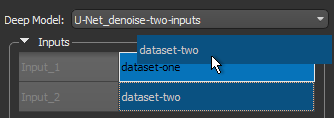
 button to normalize calibrated and uncalibrated datasets prior to inference (see
  button to remove the preview from the current view.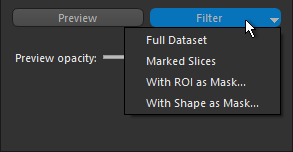
 How to Filter Datasets with AI
- Do the following, as required:
- If you plan to process data only within a mask, generate the required ROI mask (see Creating Mask ROIs)
- Do one of the following:
- Right-click the required input(s) in the Data Properties and Settings panel and then choose Filter with AI in the pop-up menu.
- Select the required input(s) in the Data Properties and Settings panel and then choose Artificial Intelligence > Filter with AI on the menu bar.
The selected input(s) appear in the Filter with AI panel.
Note Your selection must match the requirements for the regression model that you intend to use. For example, if the number of input datasets for the model is two, then you must select two datasets to access the required model.
Note By default, the Filter with AI panel is available on the Main tab on the left sidebar.
- Choose a model trained for regression in the Deep Model drop-down menu.
- Adjust the input settings, if required.
For multi-input models, you change the order of the selected inputs by dragging an input.
- Click the Preview button to generate a preview, recommended:
You can adjust the opacity of the preview with the Preview Opacity slider.
- Evaluate the preview of the selected model.
If the results are not satisfactory, you can change the model or retrain the model.
- Click the Filter button and then choose the required option — Full Dataset or With Mask — in the drop-down menu.
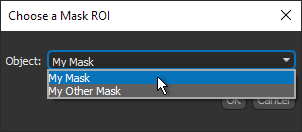
If you selected the With mask option, choose the required mask in the Choose a Mask ROI dialog, as shown below.
When processing is complete, the resulting filtered dataset is added to the Data Properties and Settings panel (see Image Properties and Settings).
